SCOOTER’S EASY SEAS CLASSROOM
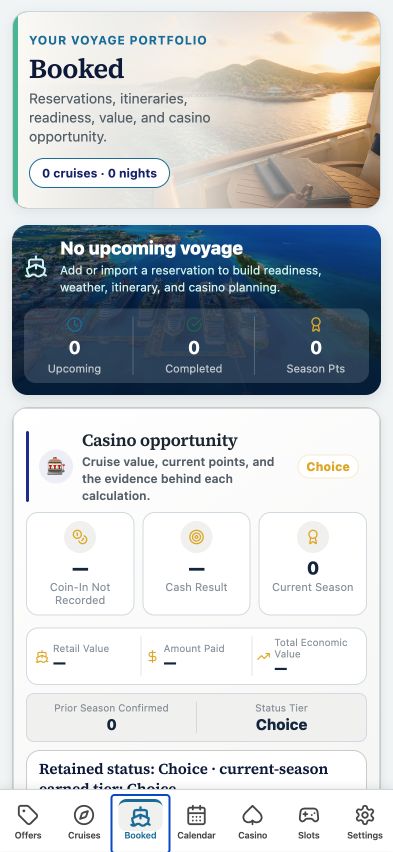
My Voyages · booked and completed
Keep confirmed trips, completed records, loyalty progress, and casino evidence together.
CLICK A CONTROL TO LEARN ITS PURPOSE
My Voyages · booked and completed
Practice guide · these buttons explain the app without changing your records.
1 / 13
An offer is an invitation; a booking has confirmation. Save them as separate records and link the evidence.
TRY THIS IN EASY SEAS
Your next three steps
- Import or enter a confirmed booking.
- Check its traveler, ship, and sail date.
- After sailing, enter actual totals and review evidence before relying on the summary.
Your account may need sign-in first. The screenshot above is the matching tab view used for this lesson; the records and counts shown are illustrative visual evidence and can differ with your account.
THE COMPLETE LESSON REFERENCE
Every control in this lesson
- List
- Read saved voyages as cards.
- Timeline
- Read voyages in date order.
- C&A Pts
- Inspect Crown & Anchor progress from saved sailing records.
- Upcoming / Completed filters
- Scope records by trip status.
- Map
- Open the visited-country view.
- Refresh
- Read the saved voyage data again.
- Upcoming only / Include done
- Hide or show completed trips.
- Clear
- Reset viewing filters.
- Sort
- Choose how to order voyage records.
- Cruise card
- Open cabin, itinerary, offer, and financial details.
- Today on my cruise
- Open the current voyage’s daily planning view.
- Casino value and evidence
- Expand the explanation behind cash result, points, and coin-in.
- Cruises used for calculations
- Inspect which records contributed to the casino totals.
Reference checked against the current app source · October 3, 2026. Provider availability, permissions, and device capabilities can change which tools appear.